Course Access
Student
Use this guide to respond to invitations, find courses shared with you, view course progress and recorded payments, and complete lessons and assessments.
1. Accept an organization invitation
Your school, academy, or organization may invite you to join. Sign in to the portal and review the invitation on your dashboard. Check the organization name, then choose Accept to join or Decline if you do not want to join.
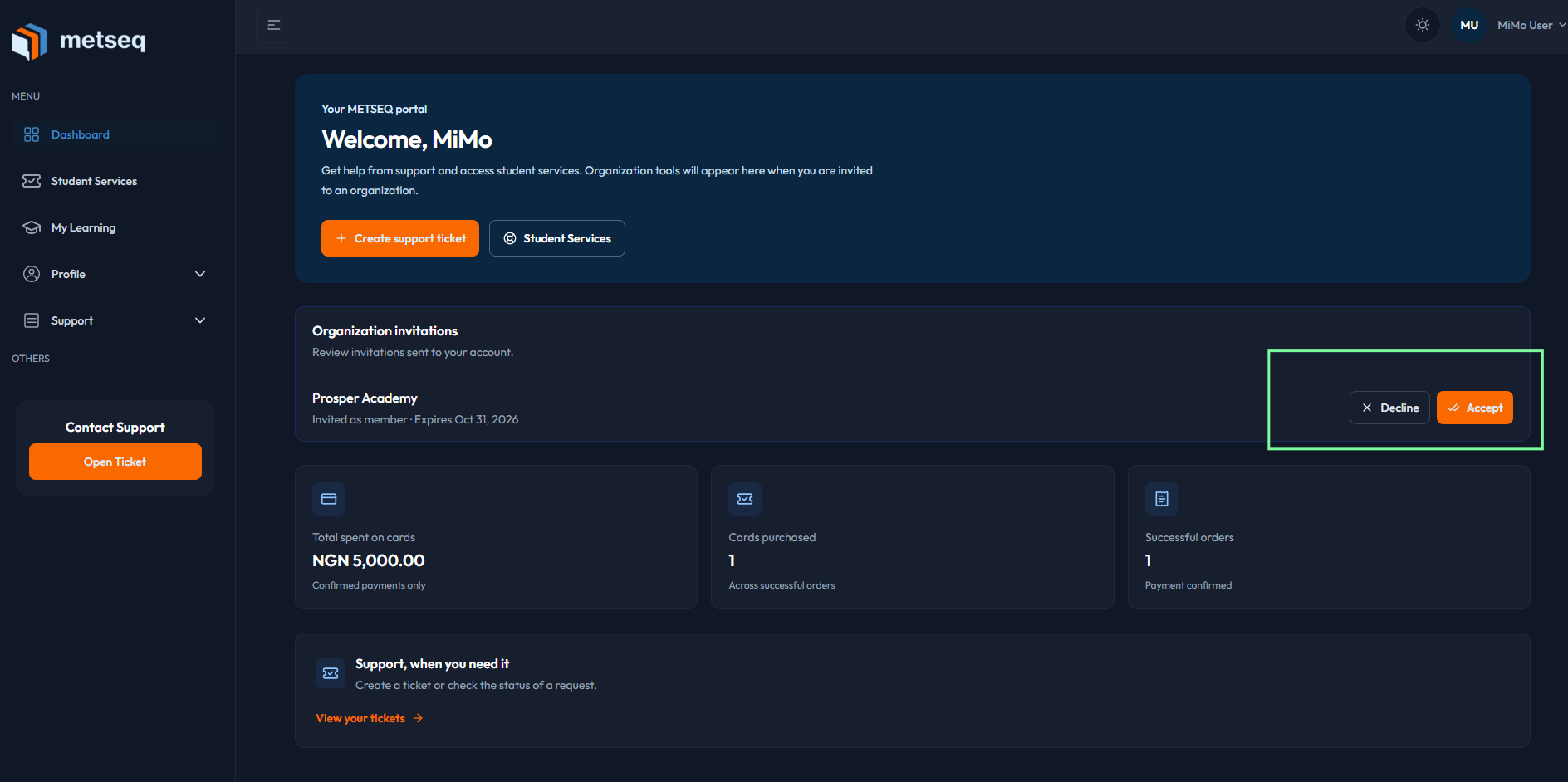
Joining an organization does not automatically enroll you in a course. An administrator must also give you access to each course you should take.
2. Accept a course invitation
An administrator may invite you directly to a course by email. Open the invitation and sign in with the email address it was sent to. If you are new to the portal, create an account with that same address, verify it, and then open the invitation again to accept.
A course invitation gives access to that course only; it does not add you as a member of the organization. If the invitation is waiting for payment or approval, the course becomes available after the organization administrator updates your access.
3. Find your courses and review progress
- Sign in and open Courses Module in the left navigation.
- Select My Courses to see courses where you currently have access.
- Use the search box to find a course by its name or the school or organization providing it.
- Review your summary and select a course to open its lessons.
Your summary shows recorded spending, course counts, completed courses, and courses in progress. Course cards show the organization, lesson count, payment information recorded by the organization, and your progress.
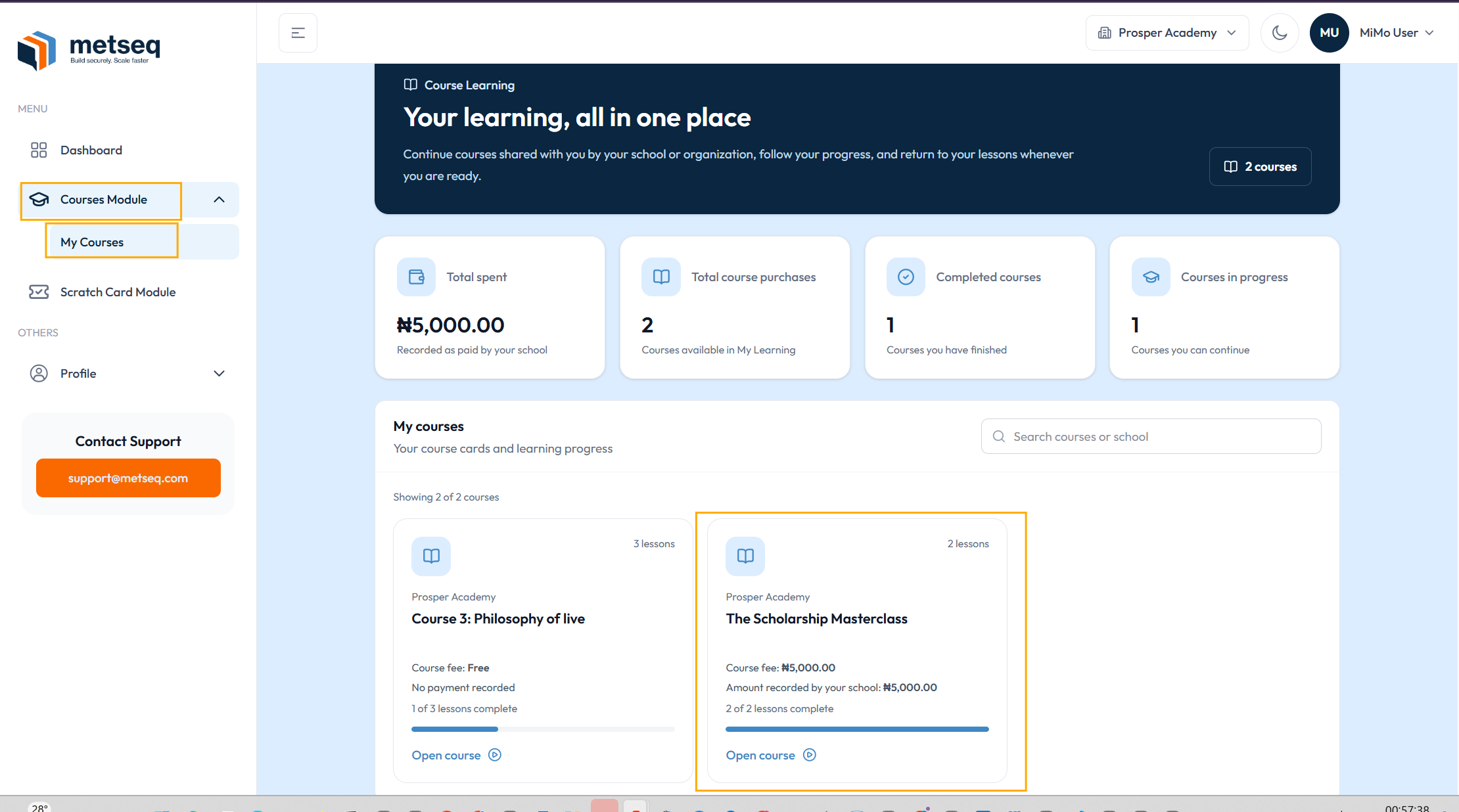
The spending total and payment amount are based on information entered by the organization. They are useful for reviewing your records, but are not a payment receipt or independent confirmation that money was received.
4. Open lessons and follow course progress
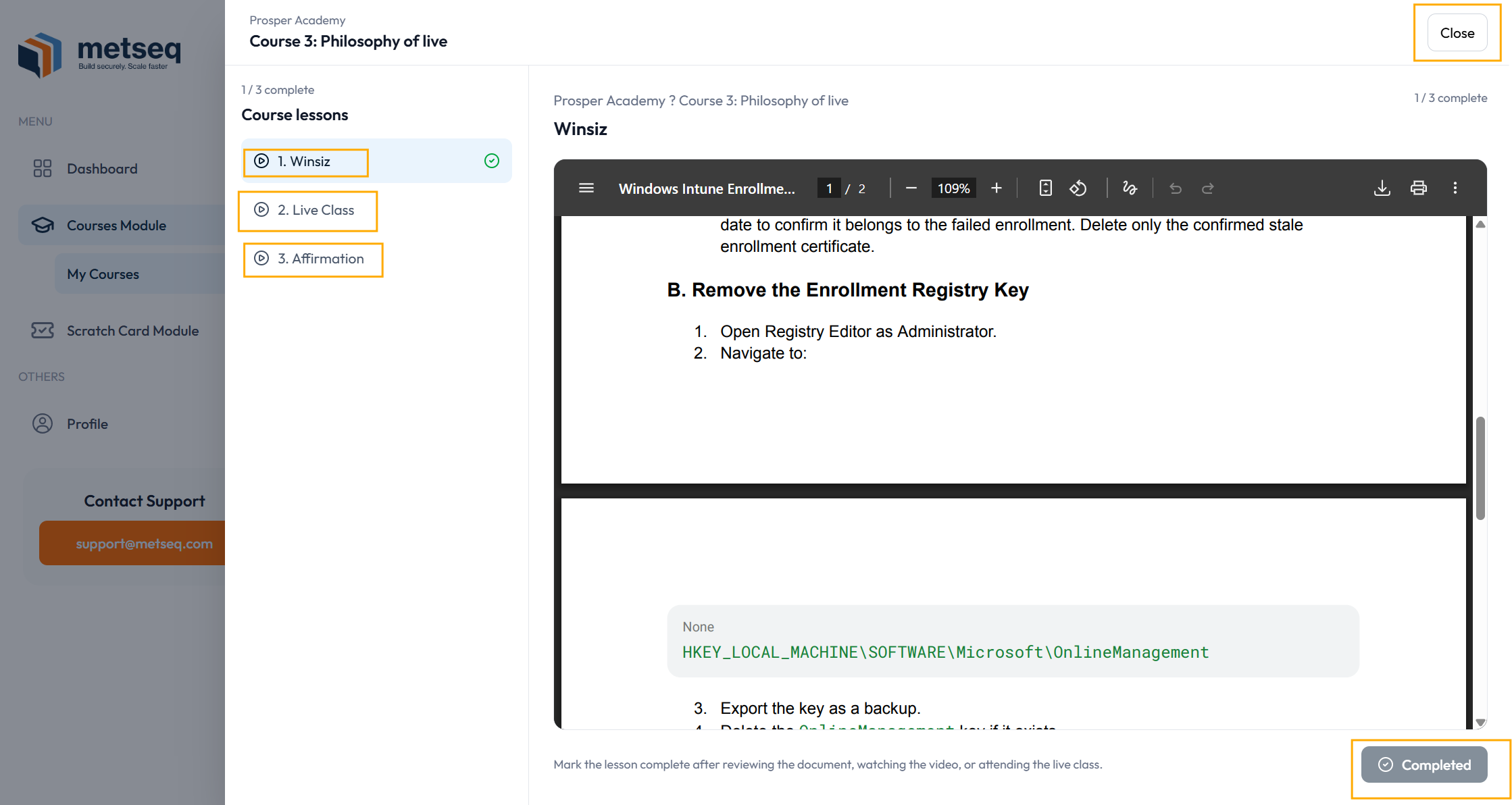
- On a course card, select Open course.
- Choose a lesson from the course list to read or view its content.
- Follow the lesson instructions. Depending on the lesson type, you may view a PDF, download a course resource, read an article, watch a video, or use the details for a scheduled live class.
- Complete the lesson using its on-screen control when available. The course view updates as you make progress.
Some lessons are scheduled to become available later. A locked lesson cannot be opened until its release time. Course completion is based on the required lessons set by the organization.
5. Complete an assignment or quiz
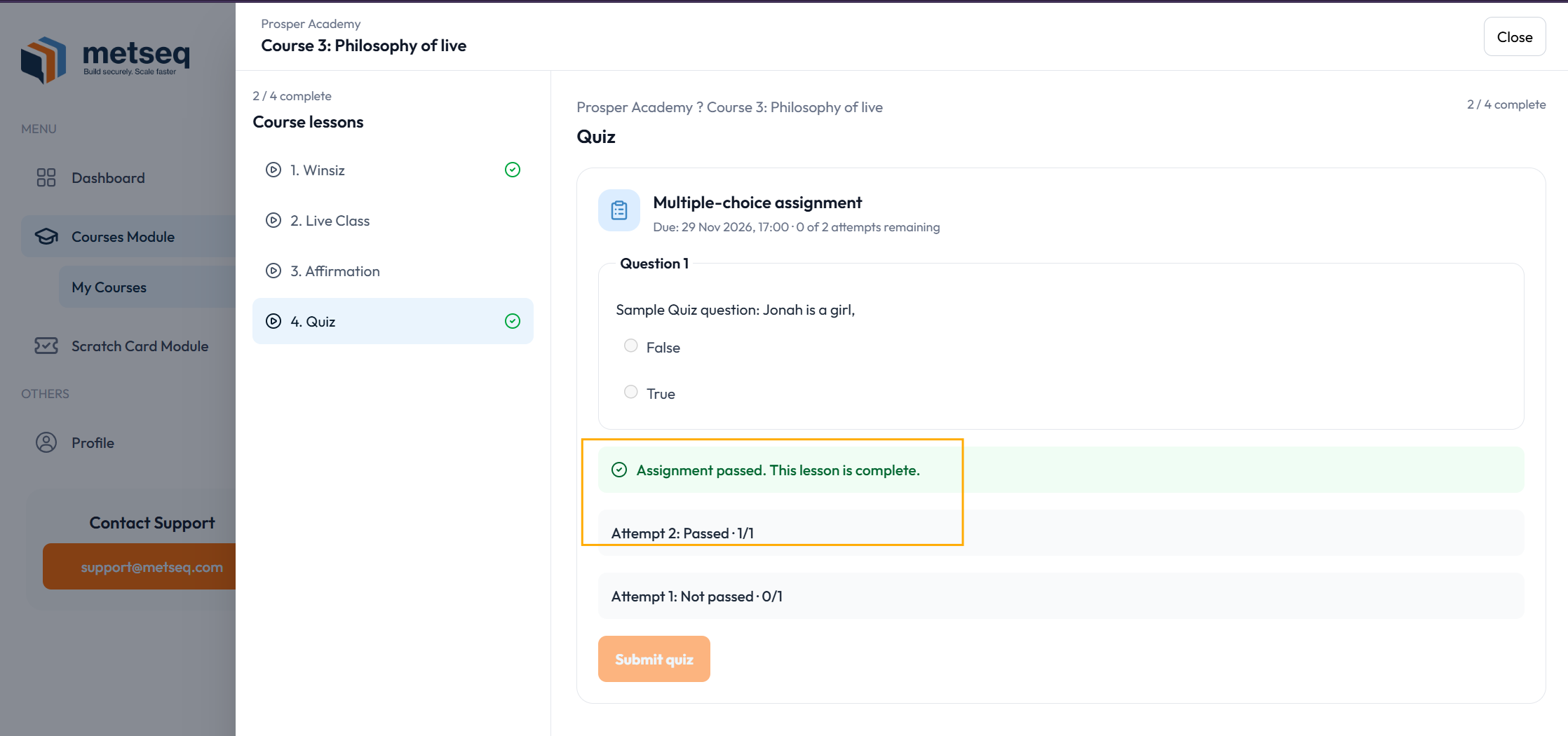
Open the assignment lesson and read its instructions, due date, and remaining attempt count. Written responses are submitted for instructor review. Multiple-choice quizzes are scored after you submit your answers.
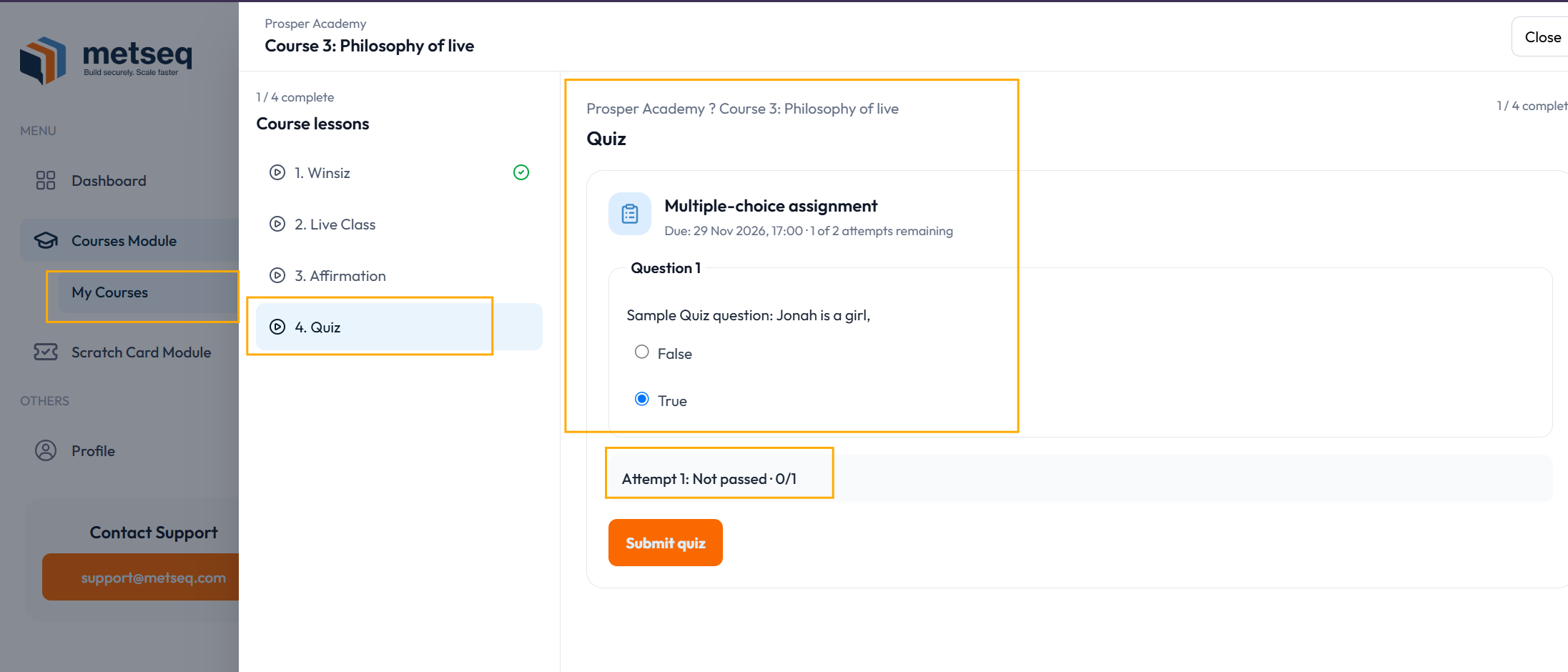
After a quiz submission, review the result shown in the lesson. If you have another attempt, you can try again. A passed quiz completes the lesson; written assignments are marked complete after the instructor reviews and passes the submission.