METSEQ Portal Guide
Scratch Card
Buy available exam scratch cards from home, then use the portal to track your order and view fulfilled card details. The available catalog can include WAEC and NECO scratch cards and JAMB exam registration PINs. Check the portal for current products; exam vouchers and professional exam registration support, including IELTS and Duolingo English Test, are in development.
Visit portal.metseq.com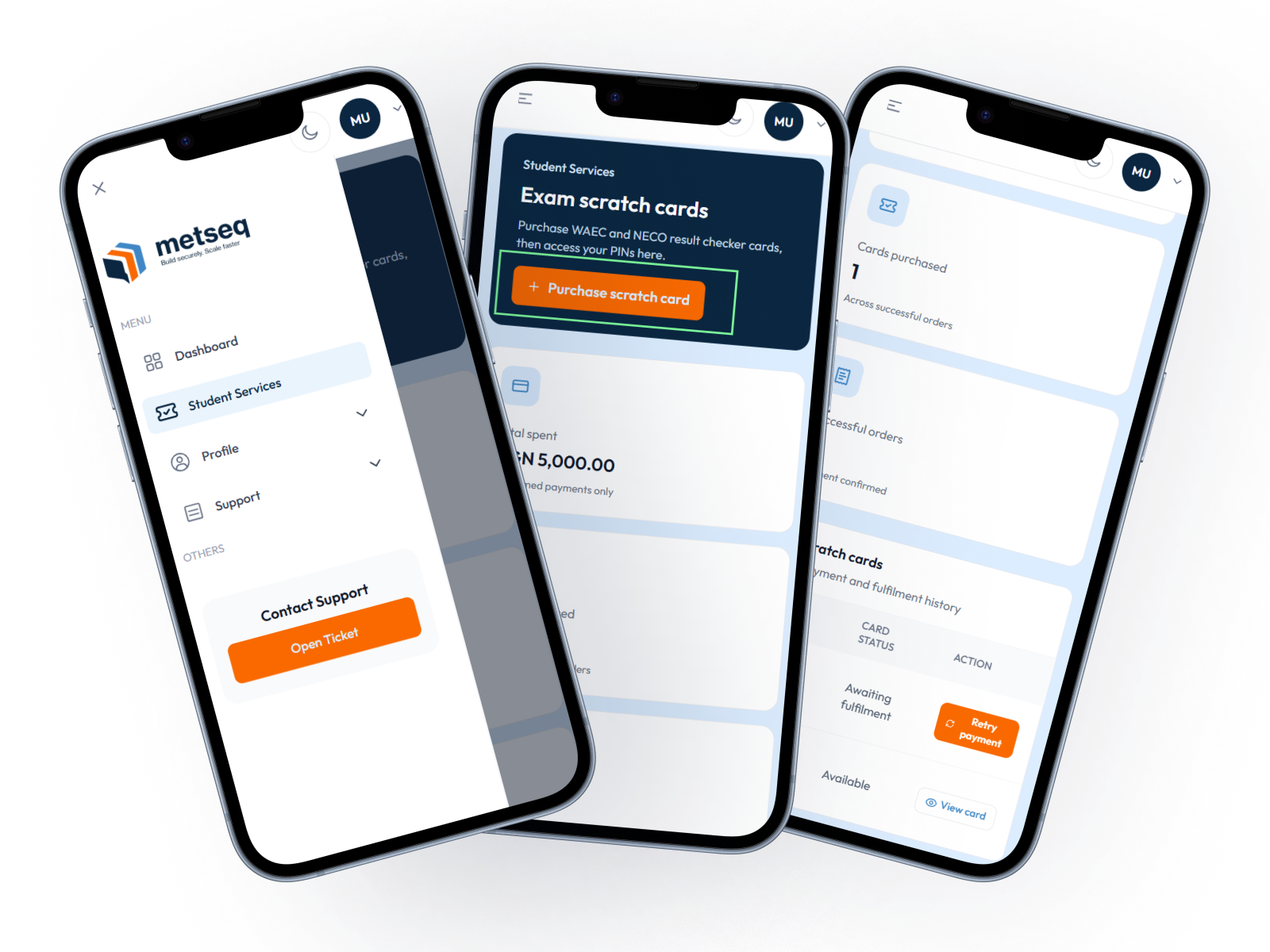
What you can do
- Browse active exam card products and buy from the available catalog.
- Check your own order, payment, and fulfillment history in one place.
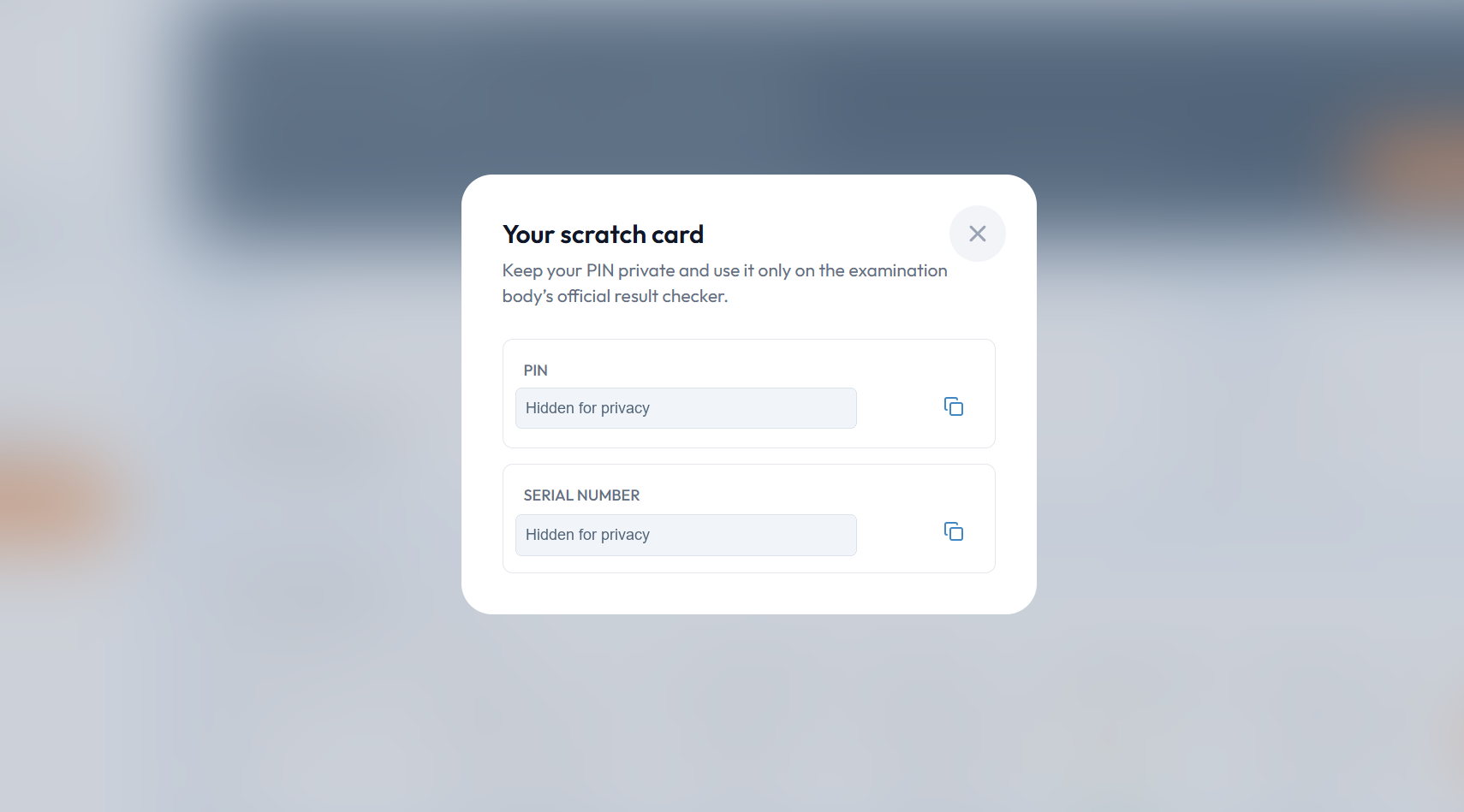
- Open the PIN and serial number for a fulfilled card when its status is available.
1. Buy a scratch card
- Sign in to portal.metseq.com, or create an account if this is your first visit.
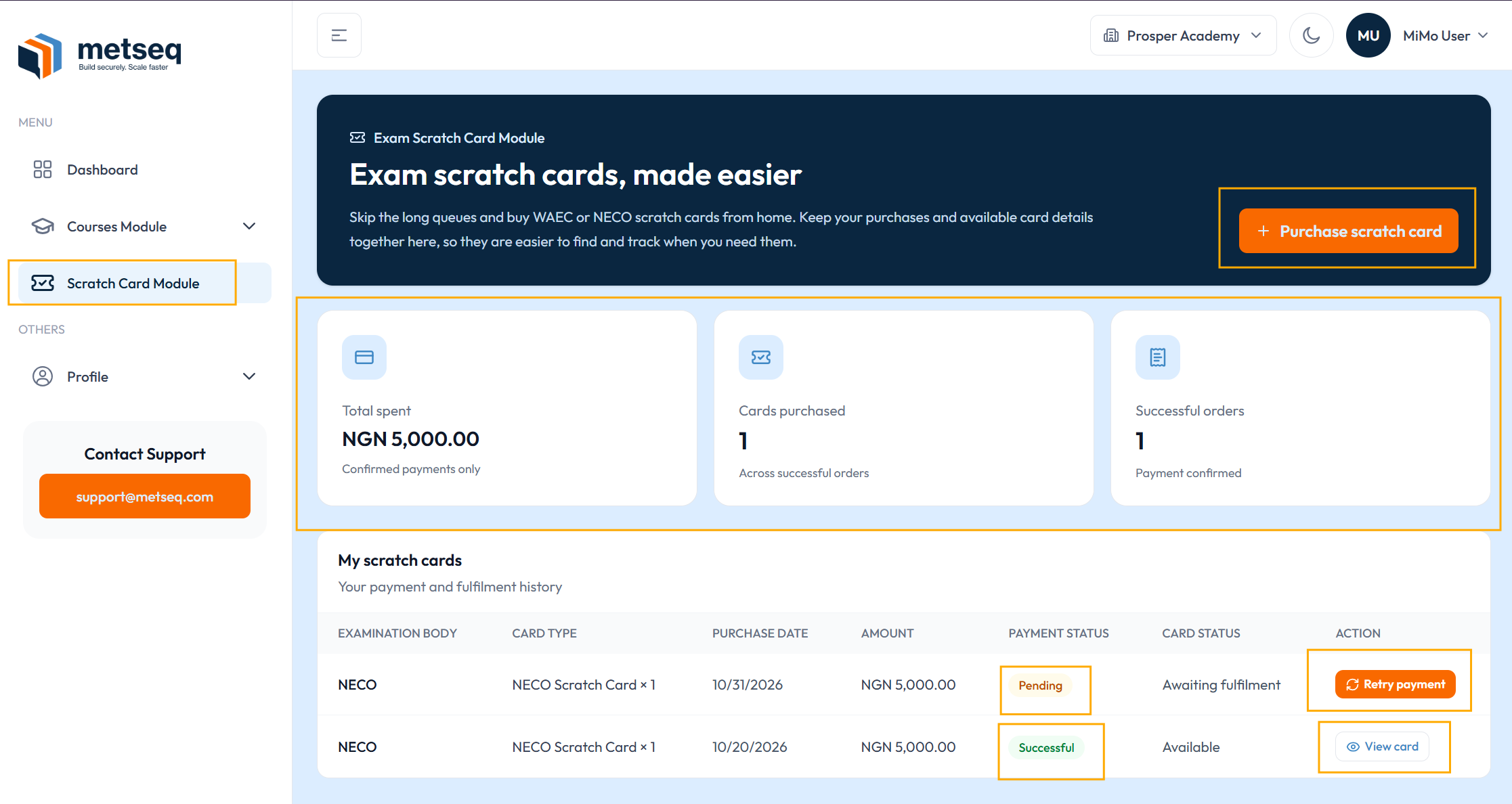
- From the left navigation, open Student Services or Scratch Card Module, depending on the label shown in your portal.
- Select Purchase scratch card, choose an available exam product and quantity, then review the displayed total.
- Continue to the payment page and complete payment. The portal calculates the total from the selected product price and quantity.
2. Track your order
Your purchase appears in My scratch cards. Check both Payment status and Card status: a confirmed payment and card fulfillment are separate steps. A card becomes viewable when its card status is Available.
The summary's total spent counts confirmed payments. If an order is still processing, wait for its status to update before trying again. Use Retry payment only when the portal offers it for that order. If payment is confirmed but fulfillment is still pending, allow time for the card to be made available.
Order history and card details are tied to your signed-in account. If a confirmed order does not become available, contact support from the portal and include the order details.
3. View your card details
- In My scratch cards, find an order marked Available.
- Select View card to open the card details.
- Use the copy control if needed, then enter the PIN and serial number only on the relevant examination body's official result checker.
Keep your PIN and serial number private. Do not share them in screenshots, messages, or with anyone who does not need them.